
Why Restoring From Backup Doesn’t Always Fix a Hacked WordPress Site
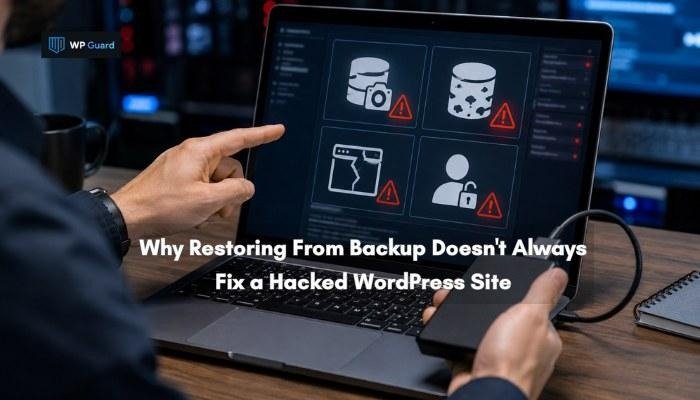
Welcome to our guide on why restoring from backup doesn’t always fix a hacked WordPress site.
Our team at WP Guard has cleaned and secured hundreds of hacked WordPress sites. We know exactly where the recovery process breaks down and what it actually takes to get a site fully clean.
In this article, we’ll cover:
- What a backup restore does
- Why a restore alone isn’t enough
- The four reasons a restore can fail
- What to do after restoring to fully secure your site
Read on to find out what most site owners get wrong after a hack. For more WordPress security tips and technical guides, explore our latest Tech articles to learn how to protect and maintain a secure website
Does Restoring From Backup Actually Fix a Hacked WordPress Site?
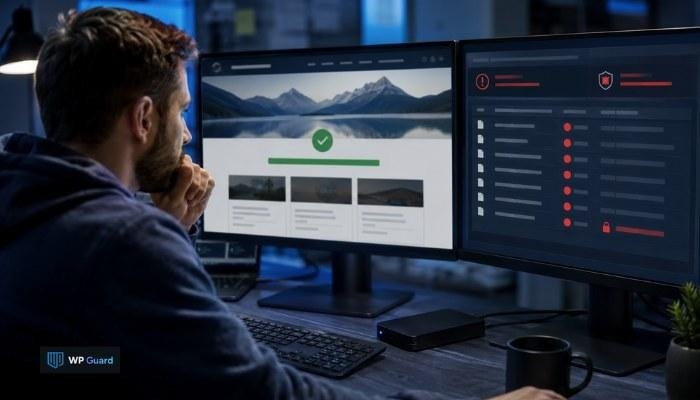
Restoring a hacked WordPress site from backup can help you recover your website, but it doesn’t necessarily remove the security issue that caused the hack. If the backup contains compromised files or the original vulnerability still exists in your environment, attackers will be able to regain access.
A proper recovery process needs a clean backup plan and thorough security checks. It also requires corrective actions to address the original vulnerability and strengthen your security posture.
We’ll get into more detail about what a backup restore does and why it often isn’t enough.
What a Backup Vault or Recovery Point Actually Does
A backup restore replaces your site’s files and database with a previously stored snapshot. It’s pretty much like rewinding a video. You go back to a specific point in time, and everything after that point disappears.
That recovery point is only as good as when it was created, which is why it’s important to manage backups carefully and keep multiple recovery points.
For example, if your backup was made on Monday and the hack happened on Friday, you’re less likely to have any issues. But most site owners don’t find out they’ve been hacked for days, sometimes weeks, after the fact.
By that point, the backup may already contain malware or other compromised files. Restoring it simply returns the website to its previous state. The process doesn’t detect or remove malicious code, so any threats stored in the backup can return with it.
Access Control Tip: Restrict who can delete or modify backups. Separate backup permissions from everyday WordPress admin access so a compromised account can’t easily interfere with recovery resources.
Why A Restore Backup Plan Is Not Enough on Its Own
Contrary to popular belief, a restore doesn’t remove malware, patch vulnerabilities, or reset compromised credentials. It simply rolls your site back to a previous state. If that state was already compromised, you’ve just restored the problem.
Take a WordPress site that uses an outdated plugin with a known security flaw. A hacker can exploit that flaw to install malware and create a backdoor. If the site owner restores a backup without updating or removing the vulnerable plugin, the underlying security issue will still be there.
Why Your Backup Restore Can Fail
As we mentioned, a WordPress backup restore can fail to solve the problem if the backup already contains malware or the security flaw that caused the hack is still present. Malware can remain hidden for a long time, so you may create multiple backups before you realize the site has been compromised.
That’s why a restore job can bring the same malicious files back and leave your website exposed to another attack.
These are the four reasons a restore won’t get your site fully clean:
- Infected Snapshot: Hackers often stay hidden for weeks without the site owner noticing anything. In April 2026, a group of WordPress plugins carried a backdoor that went undetected for eight full months. Every backup taken during that window was already compromised.
- Database Left Dirty: A file restore doesn’t touch your WordPress database. So malware injected into wp_options, post tables, or comment fields will stay there even after the restore completes. That means you’ve replaced your files, but the infection’s still sitting in your database waiting to reactivate.
- Entry Point Still Open: A restore doesn’t update your plugins, themes, or WordPress core. The vulnerability that let the attacker in remains exactly as exploitable as it was before. So naturally, the same attacker, or a different one, can walk right back in.
- Credentials Still Compromised: FTP passwords, database credentials, and hosting panel access don’t get reset during a restore. Attackers store those details and use them to re-upload malicious files within hours of you restoring a clean version.
In practice, recovery is complete only after you’ve verified the integrity of the site and its surrounding environment.
What to Do After a Backup Restore
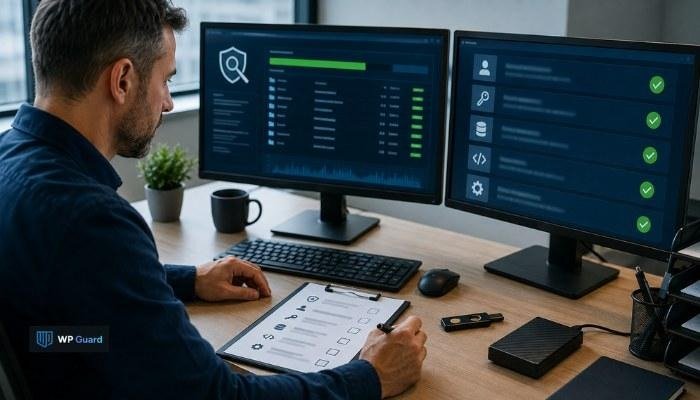
After a backup restore, there are still a few essential steps you need to take before your website is ready to go live. You’ll need to check for remaining malware, secure compromised access points, and address the vulnerability that caused the breach.
These corrective actions will help prevent reinfection and strengthen your site’s overall security posture.
Scan the Restored Site Before Going Live
When your site has been restored, run a full malware scan before you bring it back online. A successful restore doesn’t guarantee that every threat is gone. As you read earlier, malicious code can remain hidden in your files or other resources even when the website appears to be working normally.
You should also run a dedicated scanner across all your files and databases straight after the restoration process. And go live only when the scan comes back completely clean (you don’t want visitors interacting with anything suspicious).
Clean the Database Separately
A file restore alone may not remove malicious data stored in your WordPress database, so you’ll need to check it separately. If you overlook this part of the recovery process, hidden malware can remain in the database and compromise your site again.
In particular, malware hides in wp_options, post tables, and comment fields long after the files look clean. Open your database in phpMyAdmin, export a full copy first, then check for injected scripts and unfamiliar entries. We’ve found that site owners who skip this step almost always get reinfected.
Your database may also contain sensitive data, so create a secure export before you start removing suspicious entries.
Reset All Credentials
It’s important to reset every credential tied to your site, because attackers hold onto access long after you restore. More specifically, if multiple accounts have administrative access, reset their credentials and review whether each account still needs those permissions.
Go through every access point, like WordPress admin accounts, hosting panel, FTP, SFTP, database passwords, and any connected cloud providers. Also, remember to update wp-config.php after changing the database credentials, or your site will break. Enable multi-factor authentication on your admin account and recovery email.
If you don’t change your FTP credentials after a restore, attackers who already have them will be able to regain access to your site and compromise it again.
Patch the Vulnerability and Reduce Your Attack Surface
You have to find and patch whatever let the attacker in, or the same hack will happen again. Honestly, a restored site with an unpatched plugin is just a hacked site waiting to happen (especially when exploit details are already public).
Check which plugin, theme, software version, or other exposed systems created the attack surface, and update them immediately if a patch exists. If it’s abandoned or no longer maintained, delete it and find a supported alternative before bringing the site back online.
Whenever people skip this step, they leave the original security gap open and increase the risk of the site being compromised again.
You should also check staging and development environments for the same vulnerable software before bringing the site back online.
Check Google Search Console for Lingering Penalties
Even after a clean restore, Google may still flag your site, which can affect your search visibility and traffic. To ensure your site is no longer flagged, log in to Google Search Console and check the Security Issues report.
If Google has flagged your website, submit a review request and explain the remediation efforts you took to resolve the security issue. The review process can take some time, and your search visibility may remain affected until Google confirms that the site is safe.
That’s why it’s important to request a review rather than wait for the warning to disappear on its own.
Post-hack SEO Check: Review the Pages report in Search Console for unfamiliar URLs. A sudden increase in indexed pages can reveal spam content that wasn’t part of your legitimate website.
Strengthen Your Cybersecurity Posture
As you already know, a backup restore gets your site back online, but it doesn’t get it clean. The malware hiding in your database, the credentials attackers still hold, and the vulnerability that opened the door in the first place will not go away on their own.
Scan your restored site immediately, clean the database separately, reset every credential, and patch the original vulnerability before you go live. Then check Google Search Console to clear any lingering penalties.
After recovery, continuous monitoring can help you detect suspicious activity before it leads to another compromise. A complete security review can also help reduce your organization’s exposure to similar attacks in the future.
If you’d rather have a security team handle all of this, WP Guard takes care of the entire recovery process for you. Contact our team to find out more information.